The Ultimate Guide to AirDrop Alternatives: Fast File Transfer Between iPhone, Android, and Windows

If you’ve ever tried to share files between an iPhone and a Windows PC or Android device, you know the frustration. AirDrop works beautifully within Apple’s ecosystem, but the moment you step outside it, you’re left scrambling for solutions. Email attachments? Too slow. Cloud uploads? Unnecessary complexity. USB cables? Who even knows where those are anymore.
The good news? There are several excellent AirDrop alternatives that work seamlessly across platforms. Whether you’re looking at Blip, LocalSend, Snapdrop, PairDrop, AirDroid, or Google’s Nearby Share (now Quick Share), you have options for lightning-fast cross-platform file transfers.
Why You Need a Cross-Platform File Sharing Solution
AirDrop has spoiled Apple users with its seamless, lightning-fast transfers. But in today’s world, most of us don’t live in a single-brand ecosystem. You might have an iPhone but work on a Windows laptop. Your family might mix Android phones with Apple devices. Traditional file-sharing methods simply don’t cut it when you need to quickly send photos from your iPhone to your Windows PC or transfer documents from Android to iOS.
Best AirDrop Alternatives for Cross-Platform Transfers
Blip: The All-in-One Solution
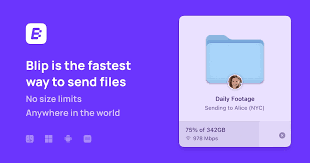
Blip is designed specifically to solve the cross-platform challenge with simplicity and speed. Here’s what makes it stand out:
Lightning-Fast Direct Transfers: Unlike cloud-based solutions, Blip uses direct peer-to-peer connections over your local Wi-Fi network, resulting in transfer speeds that rival traditional AirDrop.
No Internet Required: Blip creates a direct connection between devices on the same network, so you don’t need an internet connection. Perfect for travel or maintaining privacy.
Universal Compatibility: The real magic of Blip is its seamless compatibility between iPhone, Android, and Windows devices.
Simple Interface: Select your files, choose your recipient device, and tap send. No complicated setup or account creation required.
LocalSend: The Open-Source Champion
LocalSend has gained popularity as a free, open-source alternative that works across all major platforms. It’s particularly beloved by privacy-conscious users who appreciate its transparent, community-driven development. LocalSend offers fast local network transfers without any servers or internet connection, making it ideal for secure file sharing.
Snapdrop and PairDrop: Browser-Based Simplicity
If you prefer not to install apps, Snapdrop and its fork PairDrop offer browser-based file sharing. Simply open the website on both devices connected to the same network, and you can instantly share files. PairDrop adds enhanced features like improved device discovery and support for sharing between different networks. These solutions are perfect for quick, one-time transfers when you don’t want to install software.
AirDroid: The Feature-Rich Powerhouse
AirDroid goes beyond simple file transfer, offering comprehensive device management features. While its primary strength is managing Android devices from a computer, it also supports file transfers between various platforms. AirDroid is excellent if you need remote access, screen mirroring, or notifications synchronization alongside file sharing capabilities.
Nearby Share (Quick Share): Google’s Answer to AirDrop
Google’s Nearby Share, recently rebranded as Quick Share after merging with Samsung’s solution, is the native file-sharing feature for Android devices. While primarily designed for Android-to-Android transfers, it works excellently for sharing files between Android phones and Windows PCs through the Quick Share app. It’s the closest thing to AirDrop for Android users.
How to Get Started with Blip
Getting up and running with Blip takes just minutes:
Step 1: Download the App
Install Blip on all the devices you want to connect. It’s available for iPhone, Android phones, and Windows computers. Make sure all devices are connected to the same Wi-Fi network.
Step 2: Open and Connect
Launch Blip on your devices. They’ll automatically discover each other on the network, displaying available devices in a simple list.
Step 3: Select and Send
Choose the files you want to transfer—photos, videos, documents, or anything else. Select the destination device and hit send. That’s it.
Choosing the Right Solution for Your Needs
For maximum simplicity: Blip or Snapdrop offer the easiest setup and most intuitive interfaces.
For open-source enthusiasts: LocalSend provides transparency and community support.
For Android-Windows users: Quick Share (Nearby Share) offers native integration.
For comprehensive device management: AirDroid combines file transfer with remote control features.
For no-install convenience: PairDrop and Snapdrop work directly in your browser.
Common Use Cases
iPhone to Windows PC: Quickly transfer photos from your iPhone to your Windows laptop for editing or backup without fumbling with cables or cloud services.
Android to iPhone: Share documents, images, or videos with iPhone-using colleagues or family members instantly using any of these cross-platform solutions.
iPhone to Android: Send files to Android users without compression or quality loss that often comes with messaging apps.
Windows to iPhone: Push presentations, PDFs, or media files from your PC to your iPhone when you’re heading out the door.
The Bottom Line
In a world where we increasingly use devices across different platforms, file sharing shouldn’t be a barrier. Whether you choose Blip, LocalSend, Snapdrop, PairDrop, AirDroid, or Quick Share (Nearby Share), you’ll enjoy AirDrop-level convenience for cross-platform transfers.
No more email attachments with size limits. No more waiting for cloud uploads and downloads. No more searching for the right cable. Just fast, simple, direct file transfers the way they should be.
Ready to simplify your file sharing? Choose the solution that best fits your needs and experience the freedom of seamless cross-platform transfers.
Discover more from Sanatan Roots
Subscribe to get the latest posts sent to your email.